
Guide · Yards
Make a yard
Start a yard for your school, faith group or anyone — tap Start a yard on HOME, pick its starting shape, name it, choose who can join, and share the link.
Steps
- On HOME, tap Start a yard (or New yard) among your yards. (It is also at the bottom of Explore, under Can’t find yours?) The first time, a short page explains what a yard is — tap Create a yard to carry on.
- Under STARTING SHAPE, pick SCHOOL, FAITH or GENERAL.
- Add a picture for the yard if you like — tap The yard’s picture.
- Give your yard a name of up to 20 characters, and say what brings everyone together.
- Under WHO CAN JOIN, choose Public or Private.
- Tap Create a yard.
- On the next page, tap Share the link and send it to your people.
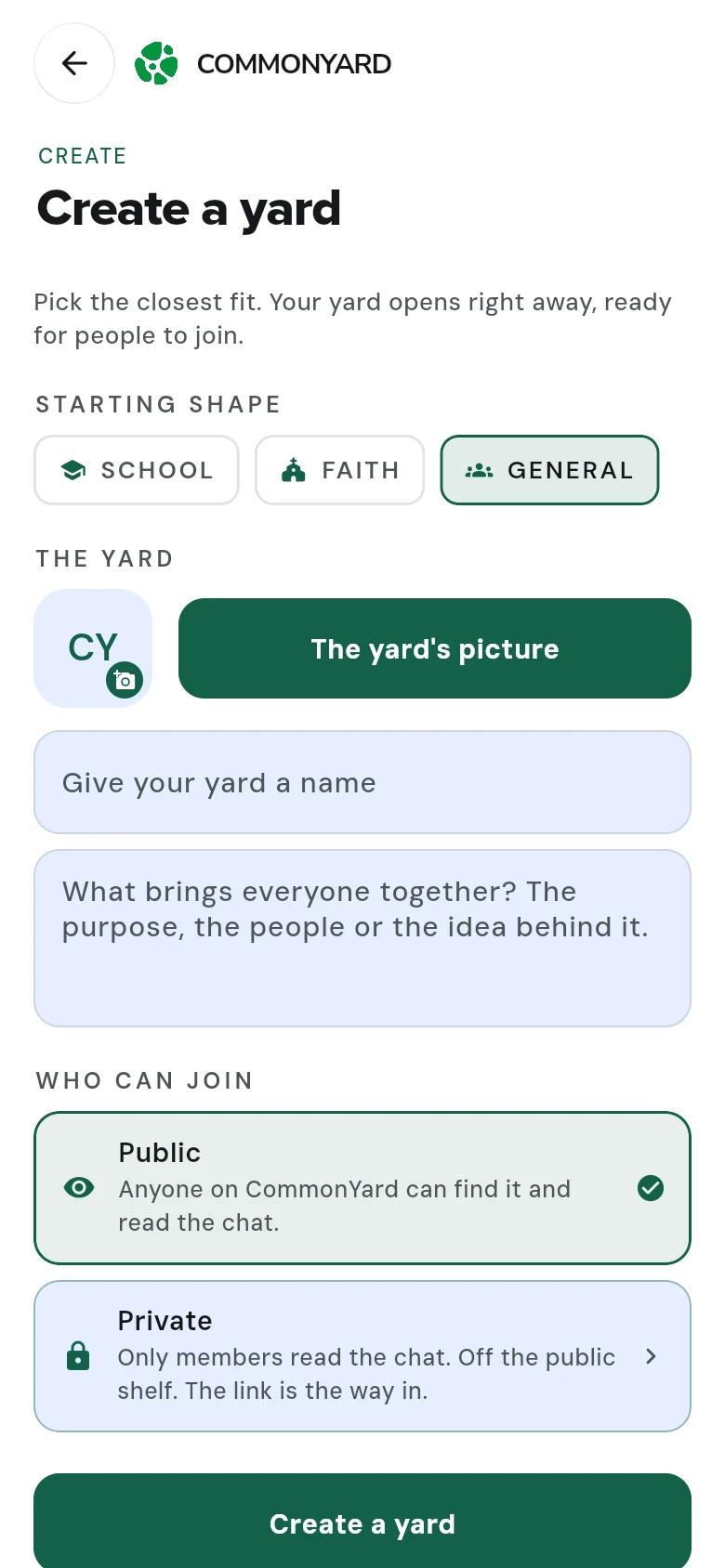
Which starting shape to pick
- GENERAL — just the yard and its chat.
- SCHOOL — adds PRACTICE to the bar inside the yard, for revising school work and sharing study materials. See Practise school work.
- FAITH — adds FAITH to the bar inside the yard: the devotional, the prayer wall and the week’s times.
Public or private
- Public — anyone on CommonYard can find it and read its posts and chat.
- Private — only members read its posts and chat, and it stays off the public list. The link is the way in.
Your yard is ready
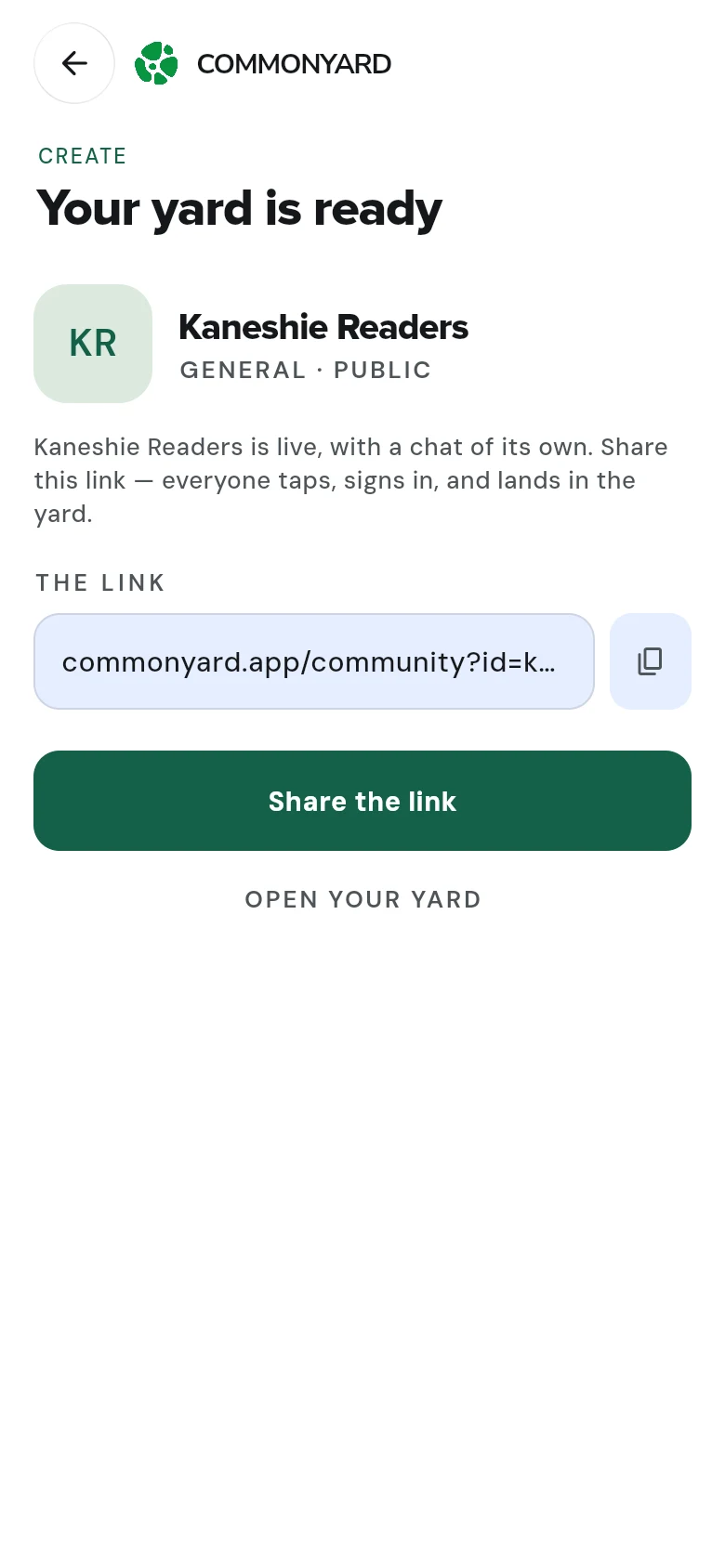
For its first week, your yard shows you a card with three things to get it going: ask the first question, share the link, and bring three people. Put it away whenever you like.
Next
- Change who can join, reset the link, add an admin, post a notice or set up an event: see Run your yard.
- Split a big yard into smaller ones — a class, a hall, a choir: see Sub yards.