
Guide · Yards
Share and download study materials
In a school yard, admins put slides, notes and past papers on the shelf under Practice, and every member can download them. PDF, PowerPoint, Word, Excel or text, up to 50 MB each.
Every school yard has a shelf for files: lecture slides, notes, past papers, reading lists. The yard’s owner and admins put them up; members download them.
Download a file
- Open your school’s yard and tap PRACTICE on the bar at the bottom.
- Tap Study materials, near the top of Practice.
- Files are grouped by course. Tap the one you want.
- It downloads, and opens in your browser or a reader app.
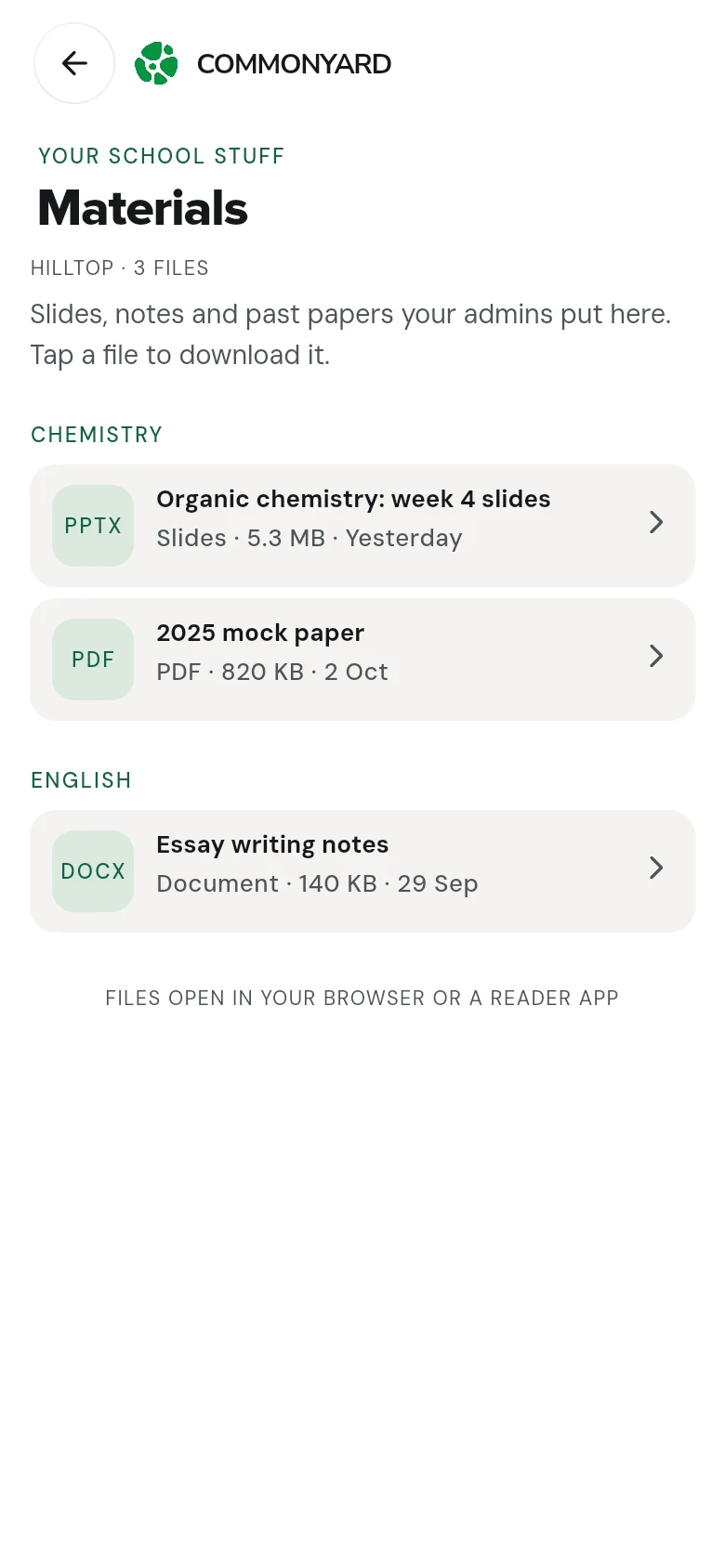
The download link works for 15 minutes. If it runs out, tap the file again for a fresh one.
Put a file up (owners and admins)
- Open PRACTICE, then Study materials.
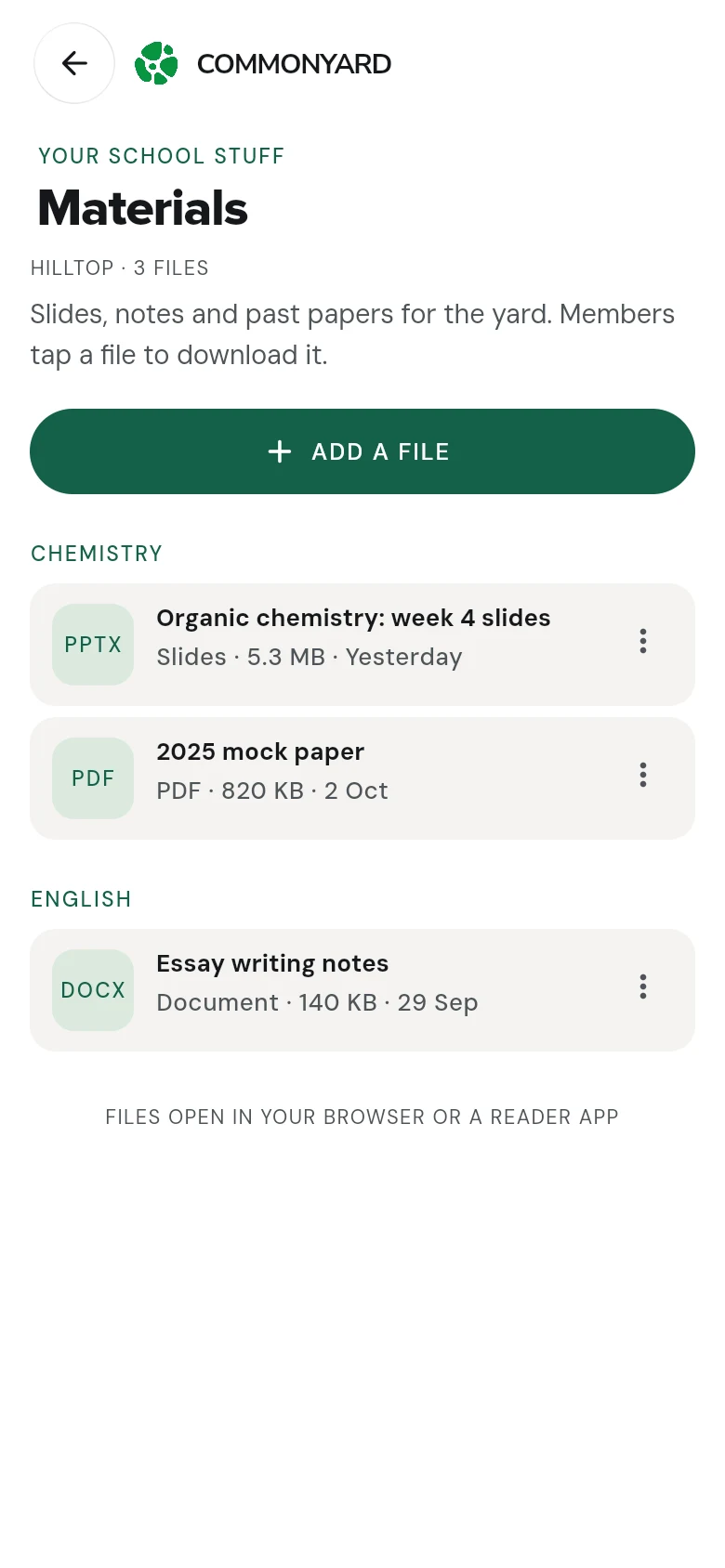
- Tap Add a file.
- Tap Choose a file and pick it from your phone or computer.
- Give it a Title. Add the Course and a few words About it if you like — the course is how files are grouped on the shelf.
- Tap Upload.
Change or remove a file
Tap the three dots beside a file (or press and hold it), then Edit details to change its title, course or words, or Remove to take it off the shelf. Members can no longer download a file once it’s removed.
Good to know
- Files can be PDF, PowerPoint, Word, Excel or text, up to 50 MB each.
- In a private yard, only members can see the shelf.
- Want questions to revise with as well? See Practise school work.