
Guide · Yards
Run your yard
For owners and admins — Manage yard holds the link and who can join, members and admins, join requests, events, the pinned notice, the chat's rules, sub yards and what was taken down.
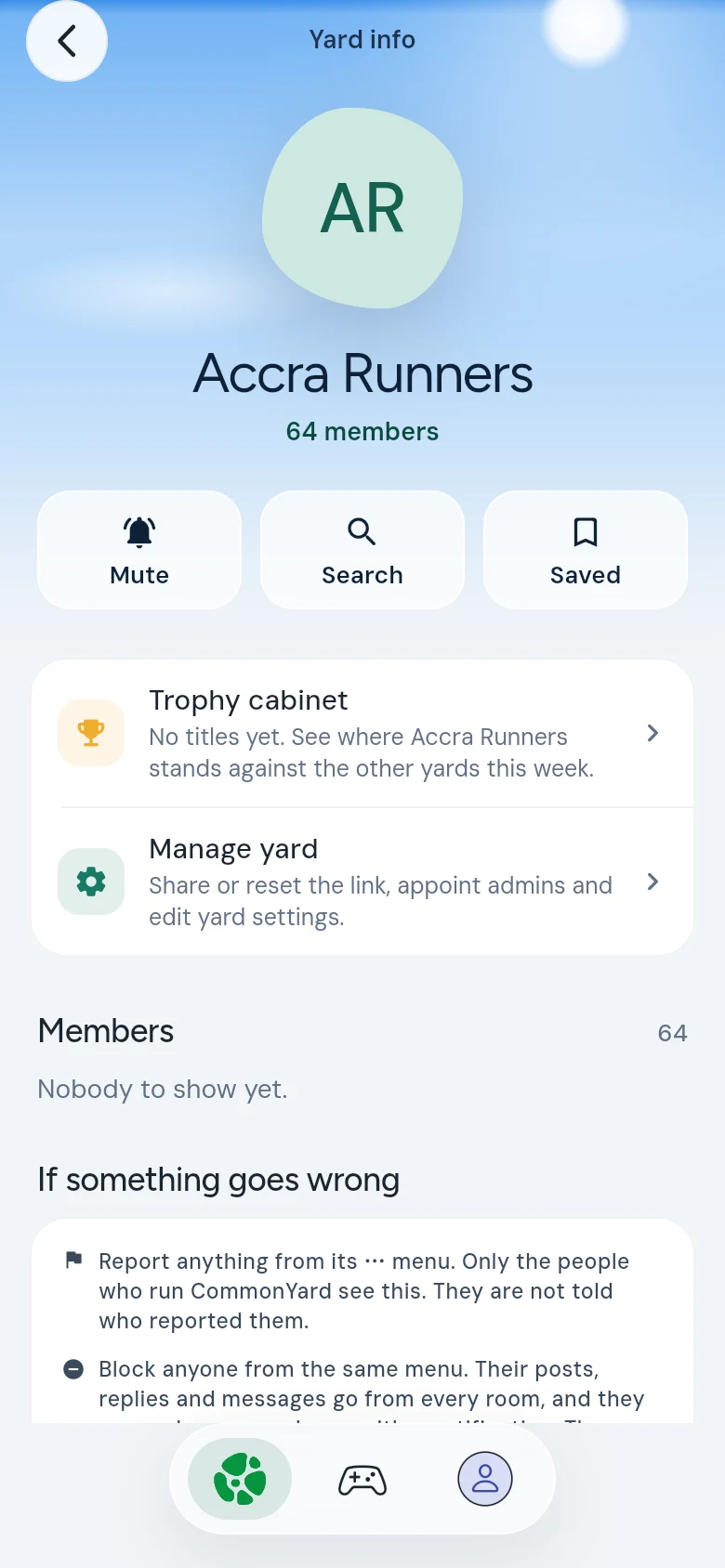
If you made a yard, or were made its admin or mod, it wears a small gear when it is in the middle of your yards at the top of HOME. Tap the gear to go straight to Manage yard. Or open the yard, tap its name at the top, and tap Manage yard on its page.
Manage yard is split into parts, along the top: Invite people, Link & privacy, Members & admins, Join requests, Events, Taken down, Chat, Yard settings and Sub yards.
Invite people, and the link
- Share or copy the yard’s link from Invite people. Whoever comes in through it counts as someone you brought.
- Reset the link gives the yard a new link. Every link shared before stops letting anybody in; whoever is in stays in. On a public yard, resetting the link also makes the yard private — CommonYard asks first, with Make it private and reset.
Link & privacy
- Public or private. A public yard is on the open list, where anyone on CommonYard can find it and read its chat. A private yard is off the list; its chat, pictures and posts are for members.
- Who can come in. Anyone with the link, Admin approval (people ask to join and an owner or admin approves them), or Nobody new for now.
Members & admins
Tap a member to Make an admin, Make a mod, Make an ordinary member, Pause their messages, or Take them out of the yard. An admin can change the yard and manage people; a mod can take people out, and nothing else.
Join requests
When your yard needs approval, the people waiting are under Join requests. Tap Approve or Decline. Admins get a notification when someone asks.
Say something to the whole yard
- The pinned notice — one short thing the yard should know. It sits at the top of the yard. Write it and tap Pin it; take it down whenever you like. It’s under Yard settings.
- Announce a post — open any post’s three dots (•••) and tap Announce to the yard to tell every member about it. You can announce once a day.
Events
Under Events, tap Add an event and fill in What, Where, Details and the time, then Add it. The yard sees it at once and hears about it an hour before it starts.
Games members make
Members can make a game for the yard — a quiz night, a word scramble, Sasabonsam. It waits for an owner or admin before it goes up. The requests are on the yard’s own GAMES page, under Requests: tap Allow and it goes up, or Turn down. See Your yard’s games and ladder.
Keeping it kind
- Owners, admins and mods see Take down from the yard in the menu on other people’s posts. What came down is kept under Taken down, where you can Put back anything taken down by mistake.
- Under Chat, choose who can talk: Everyone in the yard, or Admins and mods only for announcements. Reports about the chat are there too.
Sub yards
A sub yard is a smaller yard inside yours — a class, a hall, a department, the choir. Under Sub yards, tap Make a sub yard. See Sub yards.
The yard itself
Under Yard settings you can change the yard’s name, What this yard is for and its picture, change what kind of yard it is, Hand the yard to someone else, or Archive the yard.
In a school yard
Owners and admins can put slides, notes and past papers on the yard’s shelf for members to download. See Share study materials.